


Your athletes' payments in TrainerPlan
How to get paid by your athletes online with Stripe, with no TrainerPlan commission: connecting your account, products and charges, what your athlete sees when paying, each customer's status, invoices, payouts and manual payments with reminders.
Videos are in Spanish. YouTube offers auto-translated subtitles.
What you'll learn
- Connect Stripe, no commission
- Recurring products and one-off payments
- An online charge for one athlete or several
- Your athlete pays by card on Stripe
- Statuses, invoices and payouts
- Manual payments and reminders
In this video
- 0:00 Introduction
- 0:16 The Payments page
- 0:33 Connect Stripe, no commission
- 0:52 Recurring and one-off products
- 1:08 Create an online charge
- 1:28 Your athlete pays with Stripe
- 1:43 Where each customer stands
- 2:01 Invoices
- 2:14 Payouts and payments
- 2:27 Promo codes and share link
- 2:38 Manual payments and reminders
Transcript
Translated from the Spanish narration.
0:00 Introduction
Welcome to the seventh TrainerPlan Masterclass, now updated. Today it's about money: how to get paid by your athletes online with Stripe, with no TrainerPlan commission, and keep all your payments in the same tool you coach them in.
0:16 The Payments page
This is the Payments page. The Dashboard shows the summary for the period: total, pending, paid and past due, the chart for each month and your latest payments. Up top, the other tabs: Customers, Products, Payments, Payouts and Settings.
0:33 Connect Stripe, no commission
To get paid online, first connect Stripe. Click Connect Stripe, accept the terms and Stripe asks for your identity details and your bank account; it takes about five minutes. The money goes to your own account: you are the seller and TrainerPlan takes no commission. You only pay Stripe's processing fee.
0:52 Recurring and one-off products
Next, your products. A product can be recurring, weekly, monthly, quarterly or yearly, or a one-off payment, like a test or a single session. You give it a title, amount and currency, and if your prices include tax,
1:08 Create an online charge
the rate. To charge someone, click New payment. You pick the athlete, or several at once, the product and, under how the athlete will pay, Online with Stripe. You set the start date and, if you like, a message for the payment link and an end date. Save, and you're done.
1:28 Your athlete pays with Stripe
Your athlete gets an email and a notification with the link. They pay by card or SEPA Direct Debit on Stripe's secure page, and for a recurring fee they set up the automatic payment just once: from then on, every period is charged automatically.
1:43 Where each customer stands
In Customers you see where each one stands: Awaiting setup, Active, or Payment failed if a charge doesn't go through. In that case Stripe retries it and asks the athlete to update their card. From each row's menu you can resend or copy the link.
2:01 Invoices
Every payment collected creates an invoice in your name, with your logo and your numbering, that you and your athlete can download. In Settings, Invoices, you choose the prefix, the footer note and the tax.
2:14 Payouts and payments
In Payouts you see your available and pending balance, and every payout to your bank. And in Payments, every charge, online and manual, with filters and search by athlete, product or invoice number.
2:27 Promo codes and share link
Two extras in Products: promo codes, and Share link, so anyone can buy a product, sign up and be linked to you.
2:38 Manual payments and reminders
Does someone pay you by bank transfer or cash? Choose Manual when you set up the payment: when they pay, you mark it as paid and attach the receipt. And if they're late, Send reminder notifies them by email and in their app. That's how you get paid online, with no commission and without chasing anyone, in the same place you coach. Try it free at trainerplan.co, the whole Academy is on the website, and subscribe to the channel so you don't miss the next ones.
More Masterclasses
-
 1:40
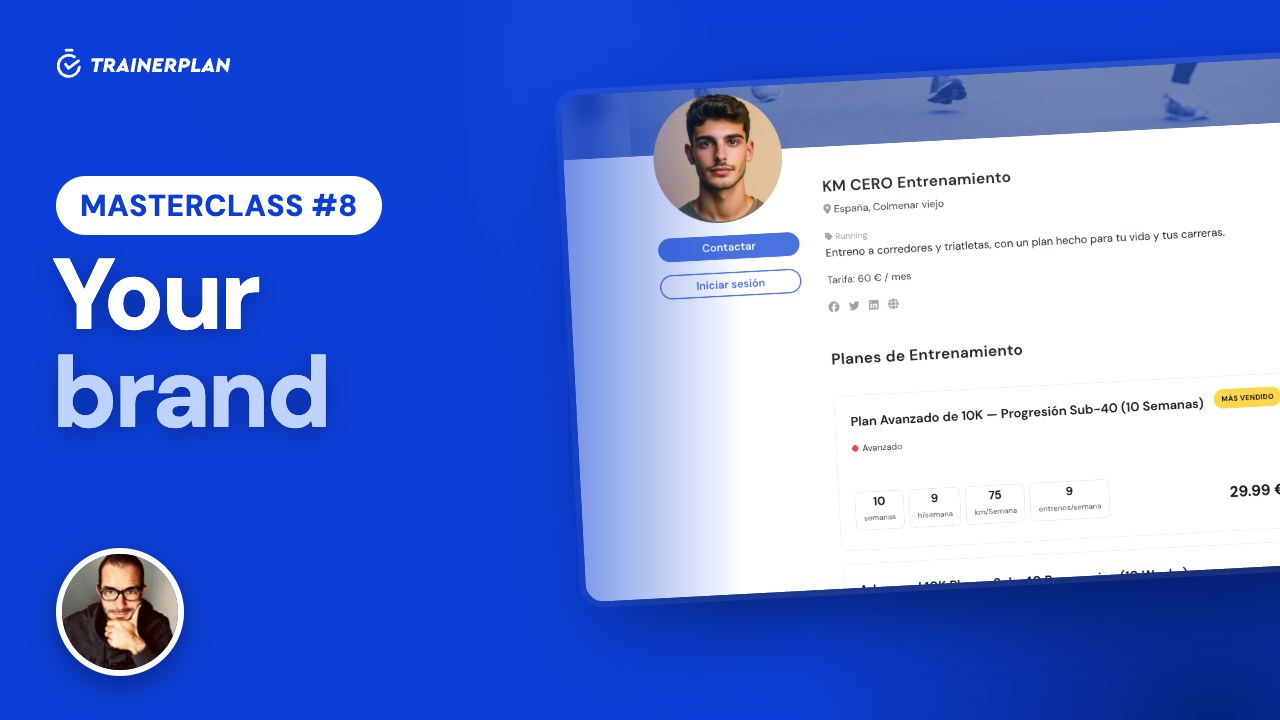
Masterclass #8
Masterclass #8 · Your brand in TrainerPlan
How to put your logo and colour on TrainerPlan so your athletes see your brand on the web, in the app and in emails, and how to publish your public profile with your services and rates.
- Upload your logo
- Choose the header colour
- Where your athletes see your brand
- The public profile: description and services
- Rates and social links
- Your public page on trainerplan.co
-
 1:52
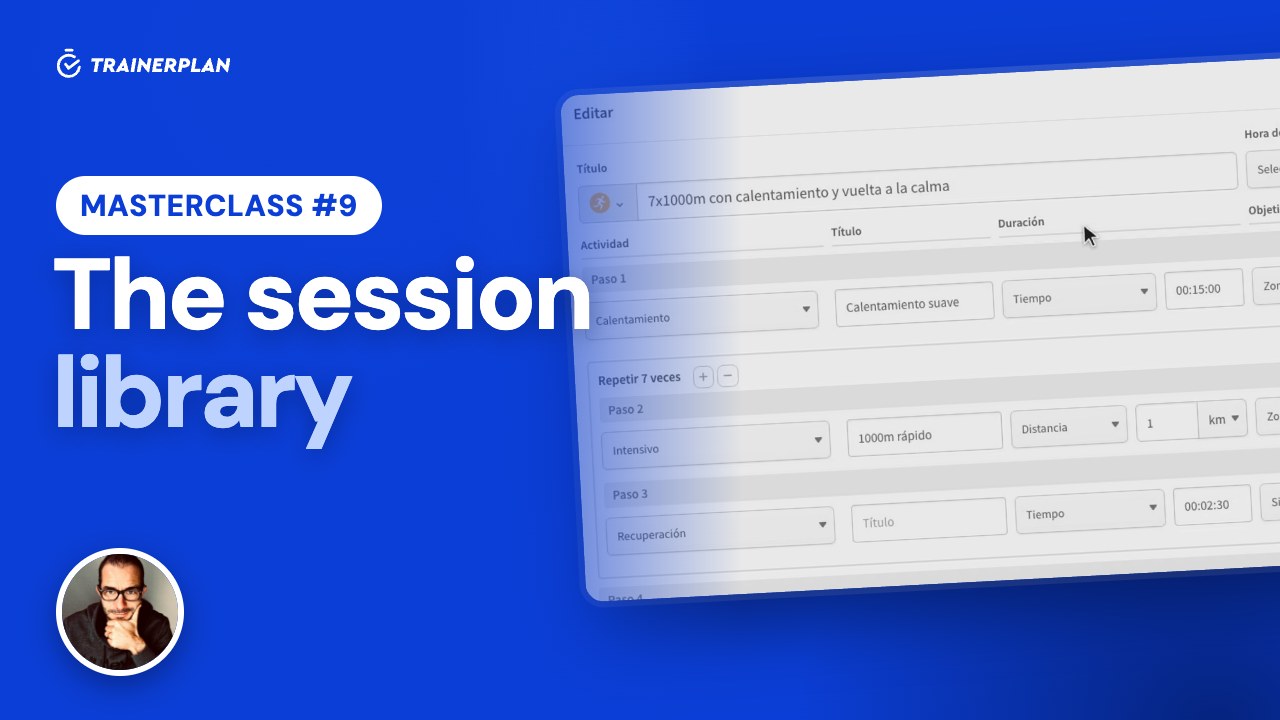
Masterclass #9
Masterclass #9 · The session library in TrainerPlan
How to save your sessions as templates in the library, organise them in folders and drag them onto your athletes' calendars, and how to attach your videos and documents to a session.
- The session library
- Create a template
- Folders, move and duplicate
- From the library to the calendar
- Save a session as a template
- Files: videos and documents
Unlock Your Full Training Potential!
Optimize your routine and reach your goals faster. Sign up today and transform your training with exclusive access to personalized tools and expert content!
Create a FREE account15-day free trial · No credit card needed