How to Set Up Training Zones: Methods, Thresholds and Templates
Zones are the language of structured training — they turn “go hard” into a precise, personal target. TrainerPlan lets you define heart-rate, power and pace zones per sport, choose the calculation method behind them, and — if you coach several athletes — save your zone schemes as Zone Templates you can apply to anyone in two clicks.
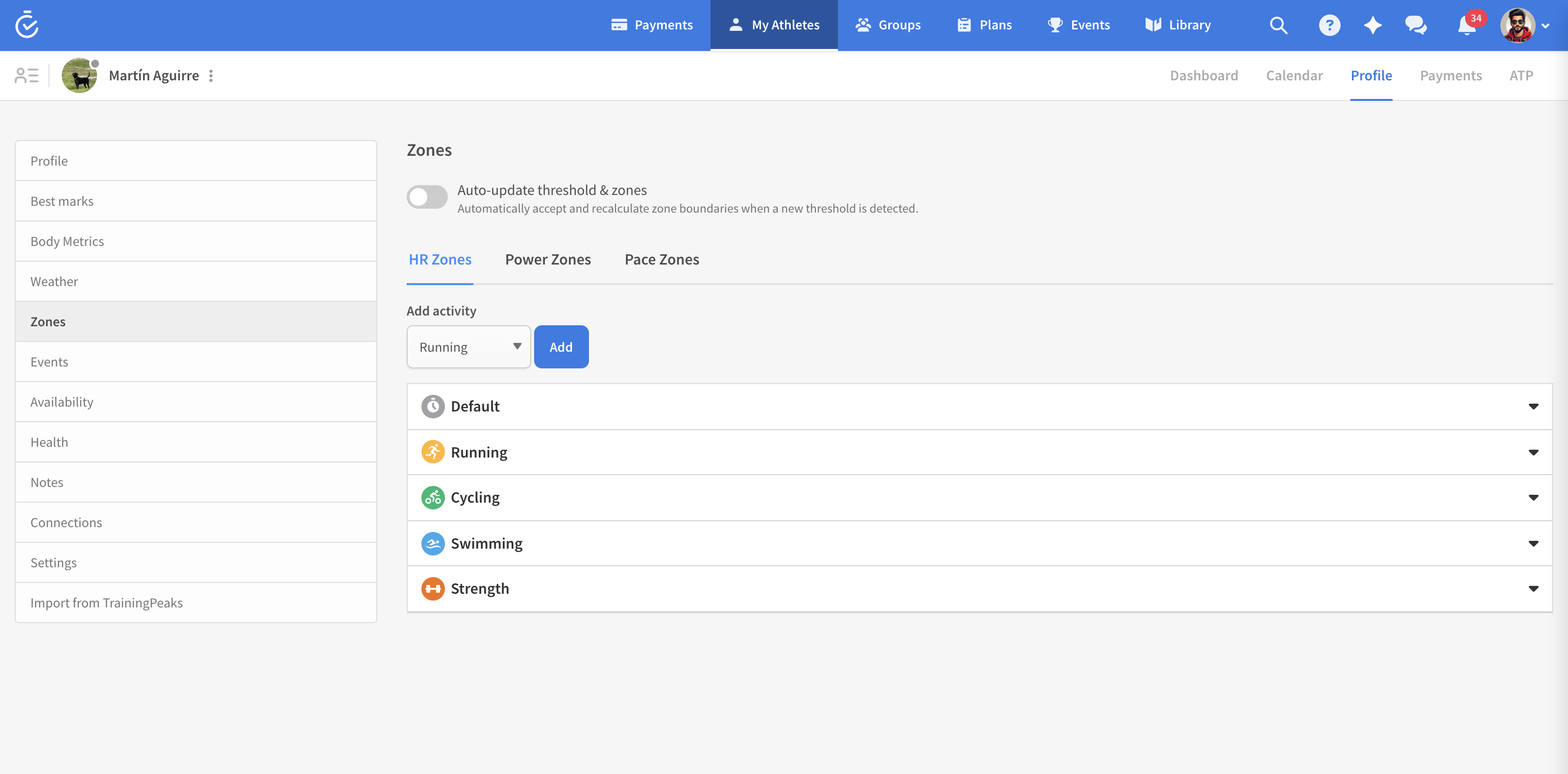
Where zones live
Athletes open Profile → Zones. Coaches open the athlete first, then their Zones page — you edit your athletes’ zones directly.
The page has three tabs — HR Zones, Power Zones and Pace Zones — and inside each tab you keep a separate zone set per activity. There’s a Default set, plus one for Running, Cycling, Swimming and any other activity you add with the Add activity selector. That matters: your running heart-rate zones and your cycling heart-rate zones are genuinely different, and TrainerPlan treats them that way.
Choose the calculation method
For each zone set you pick the method TrainerPlan uses to derive the boundaries:
- Heart rate — % of LTHR (lactate-threshold heart rate), % of Max HR, or % of HRR (Karvonen), which uses both your maximum and resting heart rate.
- Power — % of FTP.
- Pace — % of Threshold Pace.
Enter the threshold value your method needs (LTHR, maximum and resting HR, FTP or threshold pace) and TrainerPlan calculates every zone boundary for you. You can then adjust the minimum and maximum percentage of each individual zone, rename zones, and add or remove zones so the scheme matches exactly how you coach — five zones, seven zones, or your own model.
Values are validated as you type: if a resting or maximum heart rate doesn’t make sense, you’ll get a clear error instead of silently broken zones and zero-effort calculations.
Zone Templates: build it once, apply it to every athlete
This is the feature that saves coaches hours. A Zone Template is a reusable, named zone scheme — defined in percentages, so it fits any athlete regardless of their personal threshold values.
To create one:
- Go to Zone Templates in your coach area.
- Pick the tab for the type you’re building: HR, Power or Pace — templates are stored separately per zone type.
- Click Add Template and give it a name you’ll recognise later (“5-zone Karvonen”, “Coggan 7”, “Club marathon plan”).
- Fill in the table: a name for each zone plus its min % and max %. Use Add zone / Remove zone to get the number of zones you want.
- Click Save. Templates can be edited or deleted at any time, and they belong to you — each coach has their own library.
To apply one: open any athlete’s Zones page, and in the relevant tab use the Apply Template selector. Choose your template and the percentages drop straight in — you only adjust the athlete’s own threshold value. New athlete, new season, whole training group: setup that used to take an afternoon now takes a minute, and every athlete you coach is on a consistent zone model.
Keep zones current automatically
Zones drift as fitness changes. TrainerPlan analyses every synced workout and, when your data shows a new threshold, sends you a suggestion you can accept with one click — your zones then recalculate from the method you chose. See our guide on automatic threshold detection.
Why it pays off
Accurate zones feed everything downstream: the targets in your planned workouts, the zone targets pushed to your Garmin, Wahoo, COROS, Suunto or Apple Watch, your time-in-zone analysis, your effort values and the fitness, fatigue and form chart. Five minutes here makes every other number in TrainerPlan more trustworthy.