Athlete settings in TrainerPlan
With TrainerPlan you can easily manage your athletes and improve their experience with personalized tools such as downloading PDF workouts and advanced settings.
How to access the settings of an athlete
- Select the athlete you want to manage.
- In the top navigation within the athlete’s profile, click “profile”.
- From there, you will be able to modify key settings, such as training visibility, personal data and other relevant settings.
Control of the training display
You can define how many weeks of training an athlete will be able to see on his calendar. Available options include:
- All → The athlete will be able to see all the training sessions scheduled.
- current week → You will only be able to see the training of the current week.
- 1 week / 2 weeks / etc. → You will be able to limit your view to one or several weeks to come.
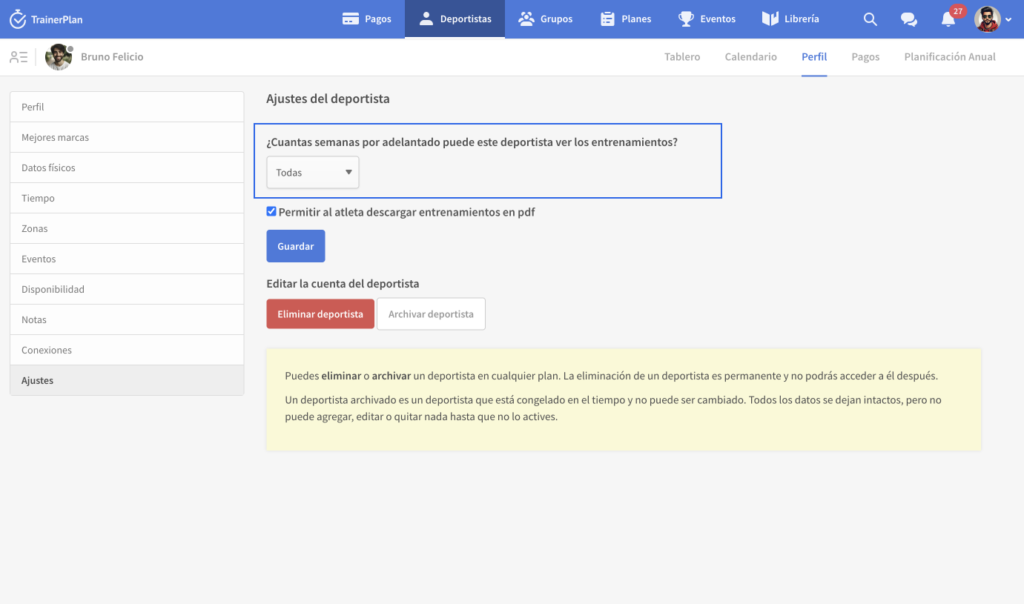
For example, if you select “Current Week”, although the entire month is planned, the athlete will only be able to see the training of the current week.
This setting allows you to better control the delivery of the plan and prevent athletes from taking sessions or focusing on future training instead of following the planned progression.
Download Training Plan in pdf
TrainerPlan allows athletes to download their workouts in PDF format to facilitate their consultation and follow-up.
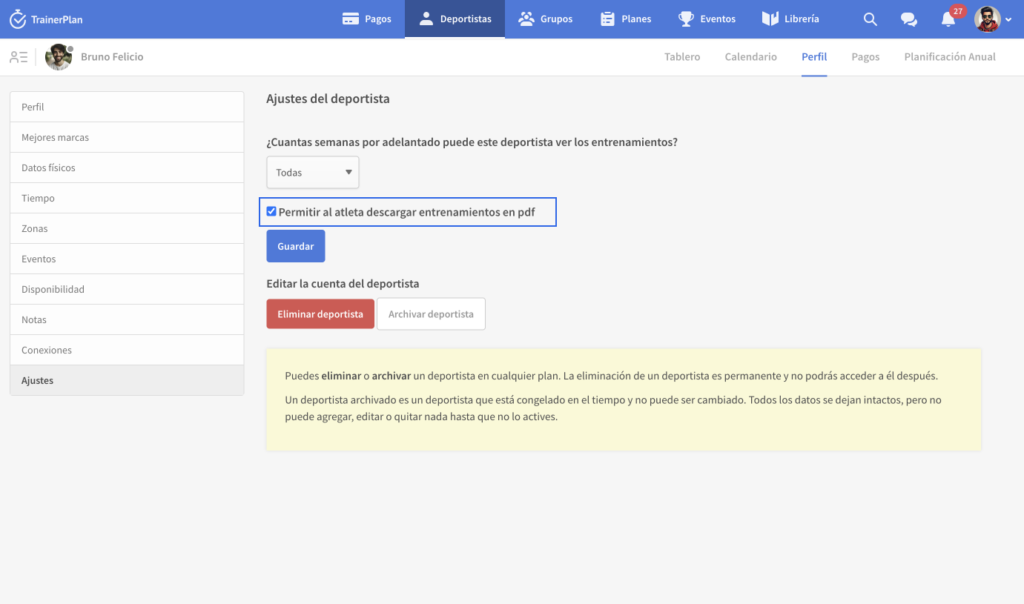
How to enable PDF download
To allow athletes to download their workouts in PDF, you must activate this option in their profile settings.
Download operation
- Once the option is enabled, the athlete will be able to download any training to which he has access in PDF format.
- This will allow you to view your planning without being connected to TrainerPlan.
This functionality is especially useful for those who prefer to train with a printed version of their planning or want to share their progress easily.
Edit Athlete Account: Delete and Archive
In TrainerPlan, you can manage each athlete’s account through two main actions: Delete athlete and Archive athlete. Both options are designed to help keep your list of athletes organized.
Delete athlete
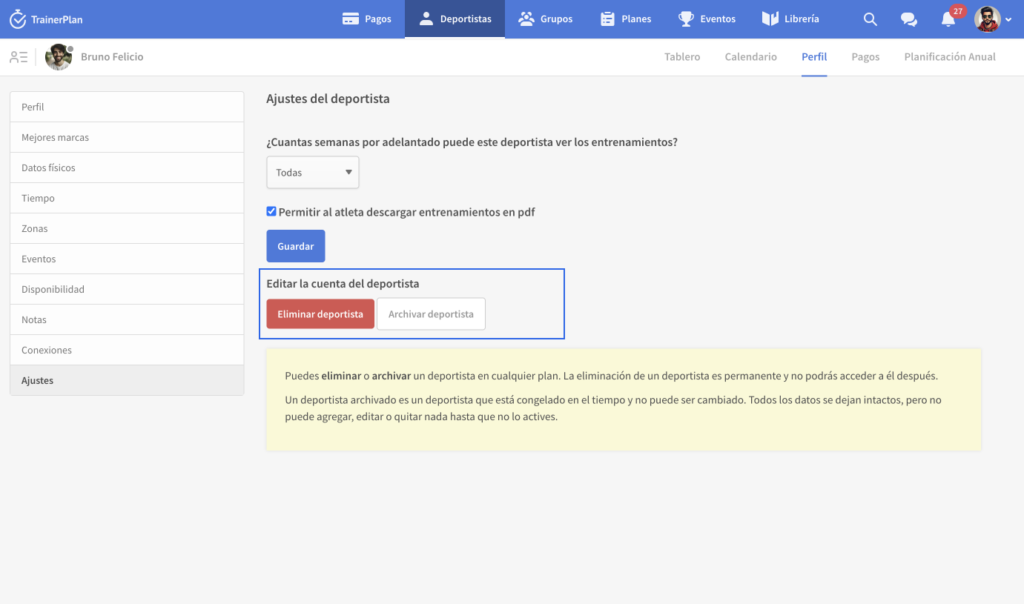
- this action permanently eliminates The athlete and all the information associated with his account, such as training, metrics and progress.
- Important: Once deleted, the information cannot be retrieved. Use this option only if you are sure that you will not need the data in the future.
Archive athlete
- Archiving is a less drastic alternative: the athlete will hide from the active list, but his information will remain stored.
- It is ideal for athletes who are no longer active, but whose data you want to keep for possible future consultations or reactivations.
- You can unarchive the athlete at any time if he becomes active again.
With these options, managing your athletes has never been easier.